
2nd Review of the Surface Book
Transcript
hi it's Keith Townson from the CTO advisor.com with another look at the Microsoft Surface Book I've had it for about a month so it's a good time to take a a followup to my last video and plus a few of you wanted to get a little bit more of a practical look at the device so we'll take a little bit more practical look at the device so additive to my last video and the last review of the Surface Book let's get out the kind of mechanical
stuff right off the bat from a practical perspective electronic eject of the tablet can be a little bit inconvenient because sometimes I just want to take off the tablet before the device is powered up which means that I have to practically wait until the device has gotten to the point where the BIOS recognizes the eject button if you notice when I hit the eject button before uh the device is powered up I get a red light I don't get the green light until quite some time
and then once the device is in tablet mode I've used it in tablet mode a little bit I found it to be less than a iPad experience so this device most definitely isn't a iPad so to speak it's and and I think the the main issue even comparing it to the uh iPad Pro is is that the interface is designed for uh a mouse and keyboard primarily and touch is a secondary thought that I can deal with the bigger issue is the size so similar to
the iPad Pro uh having a 13inch plus tablet uh can be impractical it's just too heavy I I'm I have pretty big hands and I find it uh pretty tough to use this device with one hand uh it is Heavy after after reading a book for a while uh you find that you most definitely have to go two-handed uh and you have to go from the landscape mode to portrait mode because holding it in uh portrait it gets to be heavy pretty quick feels a little
awkward in the hands so holding it in uh landscape I found it best way the other kind of it's a complaint I would say is the virtual keyboard one with uh traditional taet you could use you can use your thumbs pretty much especially if you have bigger hands like mine you can use your thumb to do two-handed keyboarding while holding the tablet that's not practical with the service so you're going to uh do one-handed keyboard use and the other thing that I've noticed or you have
to lay it flat and use the keyboard as you would a virtual keyboard or a physical keyboard and this doesn't make for a great physical keyboard the other thing that I noticed is that there's no auto correct so when I'm using it to do things such as send tweets it's just an annoyance you know with the iPad it automatically capitalizes the first letter of a sentence if you hit space twice uh the iPad will end with a period so those um useful features are not available
on the surface book and I find myself basically uh not being able to type as fast and uh Missing uh punctuation and capitalization and some tweets and messages so back to the physical layout of the device uh another uh interesting feature uh is the laying the keyboard and putting this guy into the tablet mode to get the extra battery life the overall extra weight of this makes this extremely impractical you're not going to use it as a uh tablet in this mode not at all this
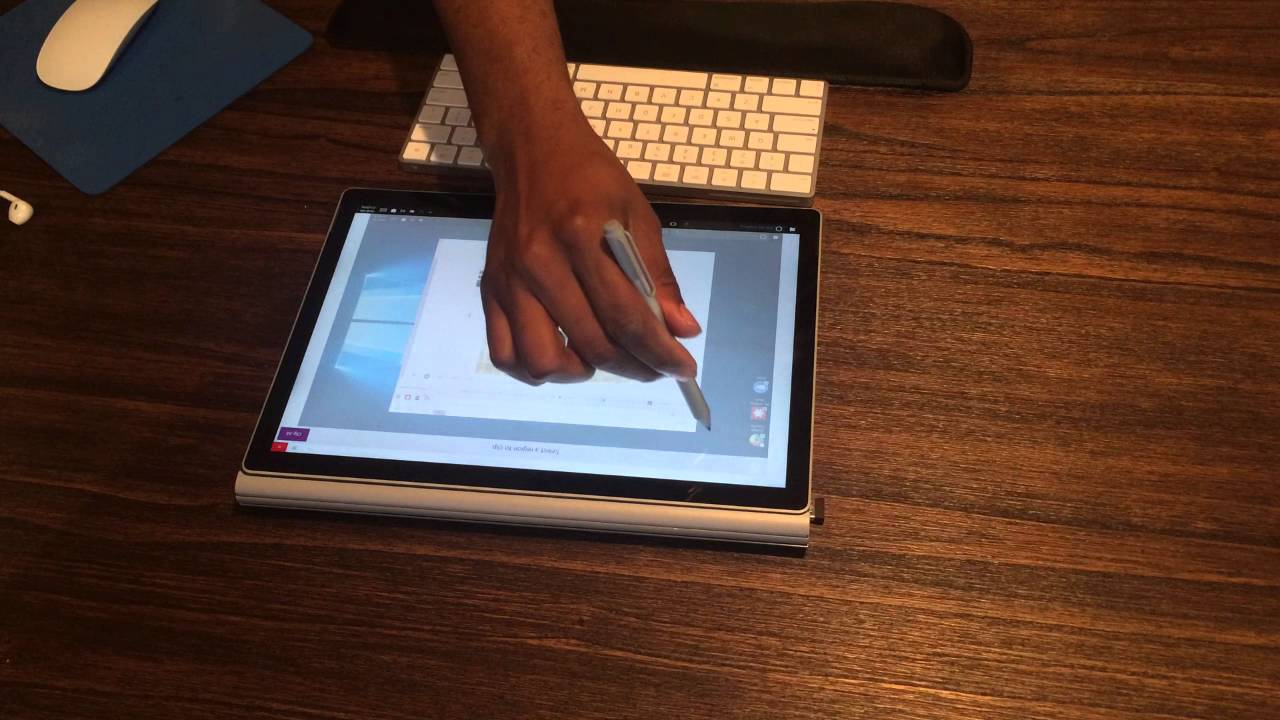
is most definitely going to be a device that you sit on the table and then use it with with the pencil so let's talk about the pencil a little bit the pencil is a uh it's great I guess from a look and feel you know the couple of things that I like that if you click the eraser once one note automatically pop pops up and you're able to uh instantly take notes uh the pen is the pen is pretty responsive the Eraser works as you would
expect uh you double click actually let's uh do something that's practical so bring up a web browser if we double click we can capture the screen and it automatically Cuts then paste whatever you uh copied into one note I found that to be actually pretty functional it's uh especially when I do content it's really great to be able to capture the screen easily and then insert it into the document is in the clipboard so I can copy and paste so one of the things I wanted
to talk about is the finger response on the touch screen it's taking me some time to get used to it I'm not quite used to it I'm not sure when I need to double tap versus single tap versus l Hold uh give you an example if I wanted to go to uh site and I mistype the site and I want to select this test to copy and paste on the iPad i l Hold this and I get a copy and uh I get a copy and
paste screen on here I get a rightclick screen uh option I can select all and then I have to I don't know if I'll hold again then I copy and then Alterna I can click with two fingers and that's the equivalent of right clicking but but I haven't really gotten that great yet I think one of the problems is that the targets on this uh screen is too small for a two-finger click and the text too sharp or too small one of the disadvantages of having
a high resolution screen is that uh the text can be really small and editing that text with your fingers can be really can be practically be a challenge another and I think this is by far all the things that I've talked about have been things that have been just adjustments my biggest complaint however is the responsiveness of the touchpad the thing has frustrated me to know in the MacBook proos touchpad for touchpads is a great touchpad I'm not a fan of touchpads if there's a little
nib I prefer using a little nib versus using a touch pad in general I'm not a huge fan of the touchpad but this touchpad in particular frustrates me it can be uh a little bit less than responsive at times I had to get used to uh using the lower right hand corner to right click I disabled that I now do a two-finger tap and this is really interesting the two-finger tap is space sensitive so if my fingers are too close together the right click doesn't work
it has to be a little bit separated and the right click works it took me some time to figure that out so so some of my frustration is just coming from being a MacBook Pro user for so long and some of the frustration is brought from just the responsiveness of the tablet the saving factor is that the screen is a touchcreen so when the tablet frustrates me I can just reach up and touch the screen to close windows or do whatever it was I was trying
to do with the touchcreen one of the challenges was be if I was going to use a SD card and put the SD card into the expansion slot as a extension of the default memory I have my Bluetooth mouth receiver into a USB port and then SD card really sticks out so trying to put that in and out of a suitcase or briefcase or your stand standard 13in laptop case that would be pretty hard usage so I'm going to look into an uh specially made SD
card that's a low profile SD card that takes away this problem for both MacBooks and [Music] the Surface Book Pro that's it for my extended review of the Surface Book follow me on Twitter at CTO advisor visit the blog where we talk about CT and architecture level Enterprise issues at the CTO advisor.com talk to you guys next video thanks


